Showing posts with label Multimedia. Show all posts

Compose Music Using TuxGuitar in Ubuntu

For ubuntu users who like music or a musician TuxGuitar can help you to compose music, tuxguitar has the following features:


With TuxGuitar, you will be able to compose music using the following features

  • Tablature editor
  • Score Viewer
  • Multitrack display
  • Autoscroll while playing
  • Note duration management
  • Various effects (bend, slide, vibrato, hammer-on/pull-off)
  • Support for triplets (5,6,7,9,10,11,12)
  • Repeat open and close
  • Time signature management
  • Tempo management
  • Imports and exports gp3,gp4 and gp5 files
You can install by downloading the tuxguitar package, here.
Read More...!!

Design Your Own Home In Ubuntu Using Sweet Home 3D

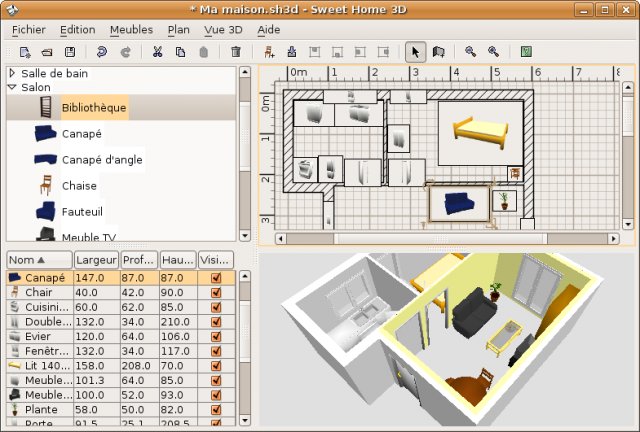
Design your own home in ubuntu? not a dream. because there is an application sweet home 3d. nah, this application helps you to design your own home, both in terms of exterior and interior.  


Here you can design your own home model, many different features such as: designing the aquarium, bedroom, kitchen and living room. dapt you install this application to download it  

http://www.sweethome3d.com/download.jsp

And below are examples :


Read More...!!

Create Simple Flash Animation Using Ella In Ubuntu 10.04 (lucid) and 10.10 (Maverick)

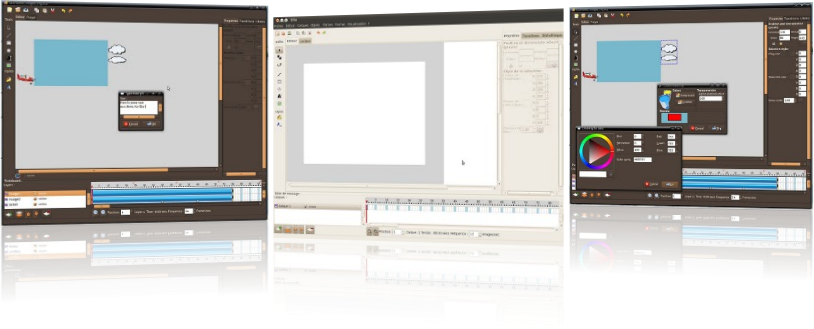
Ella is a simple flash animation maker applications on Linux, in addition to adobe in ubuntu can also create a simple flash animation using a ella. to install ella, you must add third party repository.


Go to terminal login as root by type :

$ sudo su
$ sudo add-apt-repository ppa:ella-animation/dev

Update and install ella by type :

$ apt-get update
$ apt-get install ella

Now Ella has installed and you can create simple flash animation in ubuntu, visit ella site if you want to install ella offline, you can download list packages here. Happy Testing...

Sources :

http://ella.tuxfamily.org/wiki/Ella:About
Read More...!!

Install LMMS In Ubuntu Lucid Lynx (10.04)

Linux Multi Media Studio or  LMMS is application audio editing for linux (ubuntu) to install this application  there are two ways, from PPA or downloaded packages. Here we will install from PPA, to install it we need add PPA sources, go to terminal, login as root by type :


$ sudo su
$ add-apt-repository ppa:gwibber-daily/ppa

After it, update your repository by type :

$ apt-get update

Now install it by type

$ apt-get install lmms

Other Step, you can download this packages here

Happy Testing...!!
Read More...!!

Install VLC player In Ubuntu Lucid Lynx (10.04)

Actually, installing VLC on ubuntu is Lucid very easy and probably, all Ubuntu users already know. but for you who do not know, I think it's nice to see and read this posting. to install VLC player in ubuntu Lucid lynx, follow these steps:


Go to terminal and login as root by type :

$ sudo su

Now add vlc repository from ppa by type :

$ add-apt-repository ppa:n-muench/vlc

Update and install it by type :

$ apt-get update
$ apt-get install vlc vlc-plugin-pulse mozilla-plugin-vlc

Now after finished you can watch the video using vlc player. Happy Testing....
Read More...!!

Playing Music On Ubuntu Terminal Using MOC (Music On Console)

MOC (music on console) is a console audio player for LINUX/UNIX designed to be powerful and easy to use. You just need to select a file from some directory using the menu similar to Midnight Commander, and MOC will start playing all files in this directory beginning from the chosen file. 
There is no need to create play lists like in other players. Supported file formats are: mp3, Ogg Vorbis, FLAC, Musepack, Speex, WAVE, AIFF, AU (and other less popular formats supported by libsndfile. New formats support is under development.


To install it add third party repository go to terminal, login as root by type :

$ sudo su
$ gedit /etc/apt/sources.list

Add following line 

deb http://www.lxtec.de/debarchiv unstable main
deb-src http://www.lxtec.de/debarchiv unstable main

$ apt-get update
$ apt-get install moc

If firts steps fail you can download this packgaes here....
Read More...!!

Install And Upgrade Amarok 2.3.1 In Ubuntu Lucid Lynx (10.04)

Amarok is best music player on ubuntu, you can install it with simple way, login as root and add third party repository by type :


$ sudo su
$ add add-apt-repository ppa:kubuntu-ppa/backports

Update Repository, and install it by type :

$ apt-get install amarok

If you have installed old version, you can upgrade it by type :

$ sudo apt-get update && sudo apt-get upgrade

To play mp3 music  intall this packages :

$ apt-get install kubuntu-restricted-extras

Sources: http://ubuntudoctor.com/content/video/06/Amarok-2.3.1-Installation-on-Ubuntu-10.04

Happy Testing...!!
Read More...!!

Install Pinta Images Editor In Ubuntu Lucid Lynx(10.04)

Pinta is a simple editor application images that might have been a long time we know it, same as GIMP pinta can edit the image size, photo effects, etc. to install it, add third party repository go to terminal and login as root by type :


$ sudo su
$ add-apt-repository ppa:moonlight-team/pinta


Now update and install :

$ apt-get update
$ apt-get install pinta


Now you can use it as default images editor as GIMP. There any other way to install it, by ,deb package. to download it here..., after downloaded just double click to install it.


Happy Testing....!!
Read More...!!

Desktop Background Video In Ubuntu Lucid Lynx (10.04)

You can change ubuntu desktop background using video, this is maybe old trick. But if you're new  to know it hopefully useful. We need to install some packages : zenity, mplayer dan xwinwrap. go to terminal, login as root by type :

$ sudo su
$ apt-get install zenity mplayer

Then donwload xwinwrap here....!!. Extract this package and move to /usr/bin/ open /usr/bin/ and run i-winwrap then you can see window here :


Select movie to using it as desktop background, choose video  for your desktop background, and will appeaer option to play sound next you can set tranparency video by loop and finish...

Happy Testing.....!!!
Read More...!!

Install Skype in Ubuntu Lucid Lynx (10.04)


To install skype in ubuntu Lucid Lynx (10.04) just download on skype site here http://www.skype.com/go/getskype-linux-beta-ubuntu-32 and install by double click, after finish go to applications > internet > skype. if you want this application run on startup, go to system > preference > startup application and choose add

name : skype
command skype

Happy Testing..!!

Read More...!!

Upgrade PulseAudio 0.9.21 in Ubuntu Karmic Koala (9.10)

PulseAudio on ubuntu karmic koala (9.10) by default installed version 0.9.20, the latest version of PulseAudio is 0.9.21, in this version of the existing bugs in previous versions have been fixed to upgrade to the latest version is 0.9.21 follow these steps :


Go to terminal, login as root and add PPA repository by type :

$ sudo su

$ add-apt-repository ppa:ubuntu-audio-dev/ppa

Update repository and Upgrade PulseAudio by type :

$ apt-get update && sudo apt-get dist-upgrade

After finish, now you have latest version of PulseAudio.

Happy Testing...!!
Read More...!!

Install System Wide PulseAudio Equalizer On Ubuntu Karmic Koala (9.10) Lucid Lynx (10.04)

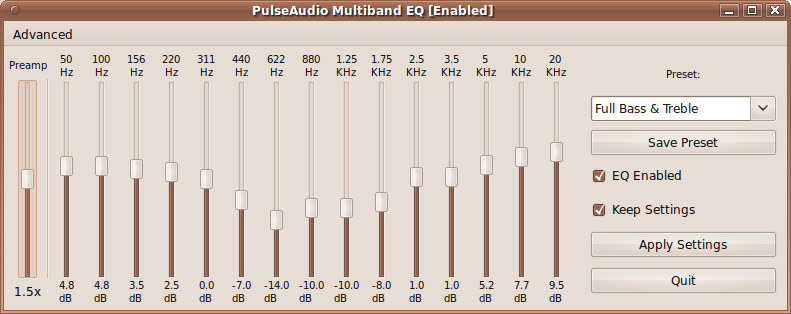
System wide equalizer in the development of PulseAudio PulseAudio for clearer sound developed by psyke83, now on ubuntu karmic koala (9.10) and ubuntu lucid lynx can be installed by adding the PPA, to install it follow these steps :


Login as root by type :

$ sudo su

Add PPA repository :

$ add-apt-repository ppa:psyke83/ppa

Update repository by type :

$ apt-get update

Then install system wide PulseAudio by type :

$ apt-get install pulseaudio-equalizer

Finish and Happy Testing...!!
Read More...!!

Install aTunes Music Player In Ubuntu Karmic Koala

aTunes is a full-featured audio player and manager, developed in Java programming language, so it can be executed on different platforms: Windows, Linux and Unix-like systems, Currently plays mp3, ogg, wma, wav, flac, mp4 and radio streaming, allowing users to easily edit tags, organize music and rip Audio CDs. to install it, just download deb package Here and install :


$ sudo su

$ dpkg -i atunes_1.13.3-1_all.deb

Or just double-klik on deb packages, to run aTunes. Go to Application > Sound & Video and choose aTunes.

Happy Testing...!!

Sources :

http://www.atunes.org/
Read More...!!

Wireless Driver Problems On Compaq CQ40 in Ubuntu Karmic Koala (9.10)

In fact when we use the ubuntu using live-CD on Compaq CQ40 no problem has found, especially in broadcom  wireless drivers, but once installed on the Compaq CQ40 wireless is not detected, probably at the time of installation is'nt installed, Compaq CQ40 used device is the product of broadcom. to install broadcom wireless drivers, there are two ways that online or offline.

Online Installation :

You must connected to internet by wired connection/dial up, to install it just login as root and update repositoy by type :

$ sudo su

Update repository :

$ apt-get update

Reinstall broadcom wireless driver by type :

$ apt-get install --reinstall bcmwl-kernel-source

Finish, restart your machines and views changes.
Offline Installation :

In the installation process is offline, we need a DVD ubuntu repository, add the repository insert DVD, go to terminal add repository by type :

$ apt-cdrom add

doing same way to all DVD repository and update

$ apt-get update

Reinstall broadcom wireless driver

 $ apt-get install --reinstall bcmwl-kernel-source

Happy Testing....!!
Read More...!!

Solve Amarok Problem On Ubuntu Karmic Koala (9.10)

Amarok is the best music player application on linux operating system, including ubuntu, but in this version, amarok have a little problem, after the application is installed by default can not play music even though the codec is a multimedia/gstreamer is already installed. turns out this problem because there is a package that has not been installed, do not know why? this package is not installed directly at the installation process, the package is needed is:


libxine1-ffmpeg

after the problem is found, we only install the package using terminal n login as root by type :

$ sudo su
$ apt-get install libxine1-ffmpeg

Finish...!!

Open amarok and lets play your favourite music and happy testing...!!
Read More...!!

Install XBMC 9.11 In Ubuntu Karmic Koala (9.10)


This time I will discuss how to install XBMC 9.11 in ubuntu Karmic  koala, to install it. follow these steps:

Go to terminal and login as root by type :


$ sudo su


Add third party repository by type :


$ add-apt-repository ppa:team-xbmc


Update repository by type :


$ apt-get update 


Then install XMBC by type :


$ apt-get install xbmc


Happy Testing....!!
Read More...!!

Install Boxee In Ubuntu Karmic Koala (9.10)

Boxee is a cross-platform freeware media center software with a 10-foot user interface and social networking features designed for the living-room TV. Boxee is a fork of the free and open source XBMC media center software which Boxee uses as an application framework for its GUI and media player core platform, together with some custom and proprietary additions. Marketed as the first ever "Social Media Center", Boxee enables its users to view, rate and recommend content to their friends through many social network services and interactive media related features.


To Install Boxee in Ubuntu follow these steps :
Download all packages below

libkrb53 1.6          Download Here
libdirectfb-1.0-0   Download Here
liblzo1 1.08-3       Download Here

And simply to install it by double click or you can install it by using the command in terminal :

$ sudo su
$ dpkg -i *.deb

Happy Testing....!!
Read More...!!

Install Ubuntu Studio Packages in Ubuntu Karmic Koala (9.10)

If your hobby is editing audio, video or graphics, on  ubuntu desktop. particular  in ubuntu version  karmic koala (9.10) you can install package application ubuntu studio  on your ubuntu desktop, in  ubuntu studio there  are many editing applications, like graphics, audio, or video applications. To install ubuntu studio  applications packages  in your karmic koala, you can follow these steps:


Login as root by type :


$ sudo su

To install audio application :

$ apt-get install ubuntustudio-audio

Install video application :

$ apt-get install ubuntustudio-video

Install graphics application :

$ apt-get install ubuntustudio-graphics

Now you have ubuntu desktop like ubuntu studio

Happy Testing...!!
Read More...!!

DVD Playback Capability On Ubuntu Karmic Koala (9.10)

On the DVD encryption is already in, usually we'll hassle to play the dvd, because there is not yet installed packages are: libdvdcss2. if you want to play DVDs that have the encryption you have to install it by downloading the package, follow these steps:

Go to terminal and type :


$ wget -c http://packages.medibuntu.org/pool/free/libd/libdvdcss/libdvdcss2_1.2.10-0.2medibuntu1_i386.deb

Login as root to install libdvdcss2 by type :


$ sudo su

$ dpkg -i libdvdcss2_1.2.10-0.2medibuntu1_i386.deb

Or you can add medibuntu repository on your system by type :

$ wget http://www.medibuntu.org/sources.list.d/karmic.list --output-document=/etc/apt/sources.list.d/medibuntu.list
$ apt-get update
$ apt-get install medibuntu-keyring
$ apt-get update
$ apt-get install libdvdcss2 


Instead of downloading directly from Medibuntu, you could also use the script included with the libdvdread4 package to download and install libdvdcss2:


$ apt-get install libdvdread4
$ /usr/share/doc/libdvdread4/install-css.sh


And if you have not already install ubuntu-restricted-extras, you can also install w32codecs by type :

$ apt-get install w32codecs

Happy Testing...!!

Sources :

http://www.videolan.org/developers/libdvdcss.html
Read More...!!

Install XMMS In Ubuntu Karmic Koala (9.10)

To install XMMS in ubuntu karmic koala (9.10) you should add third party repository, to install it follow these steps :

Login as root and add your repository by type :


$ sudo su
$ gedit /etc/apt/sources.list


Add this line and save :

deb http://www.pvv.ntnu.no/~knuta/xmms/karmic ./
deb-src http://www.pvv.ntnu.no/~knuta/xmms/karmic ./

Update and Install

$ apt-get update
$ apt-get install xmms

To run xmms, create launcher by right click on the desktop and choose create launcher


Choose browse, go to /usr/bin then find xmms (application/x-executable) click ok.

For more ubuntu version, here

Happy Testing...!
Read More...!!